
Visual Editor
The visual editor lets you preview and edit a page's sections directly on its final rendering, rather than through the page management forms. It's reached through a page's Open the visual editor button.
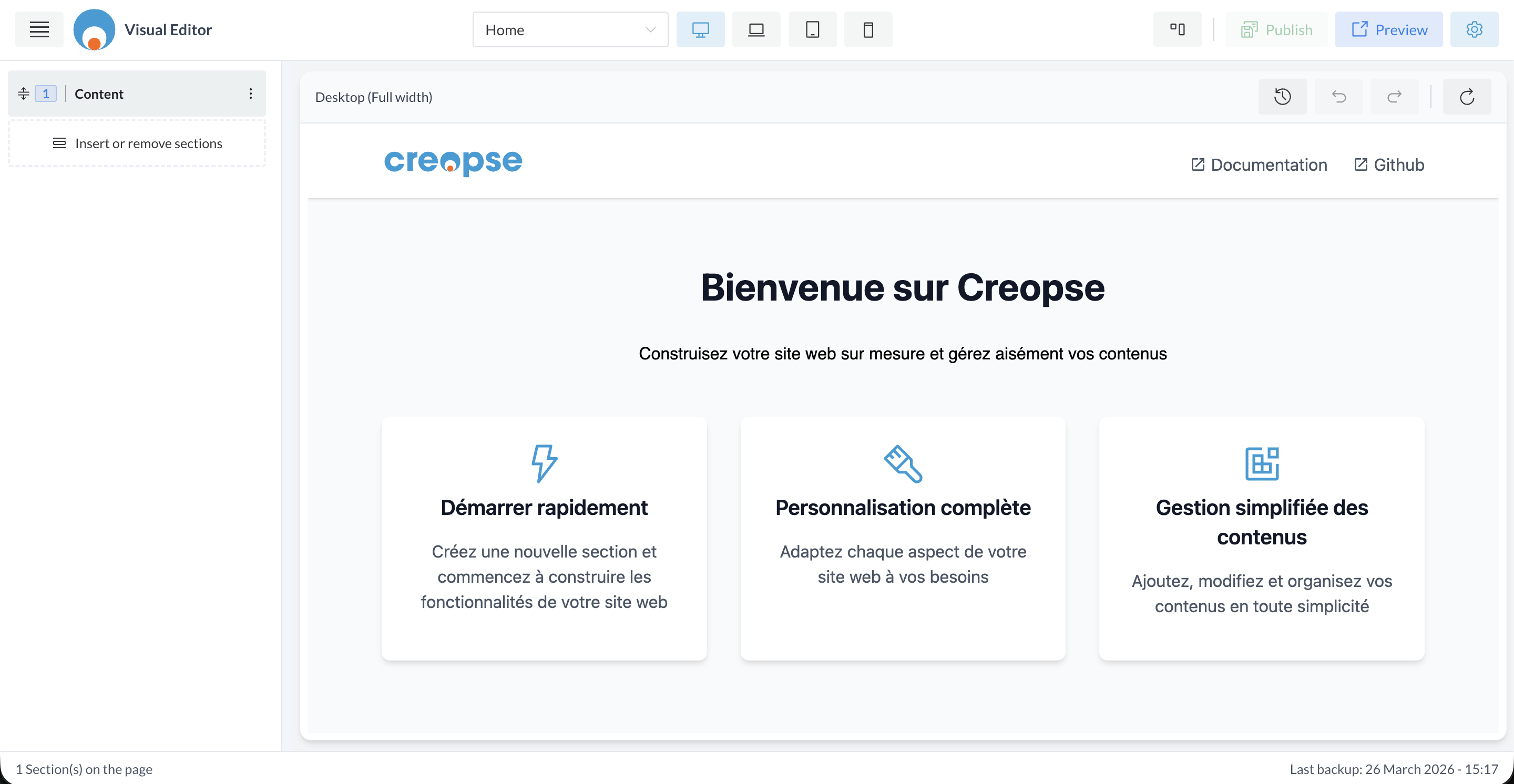
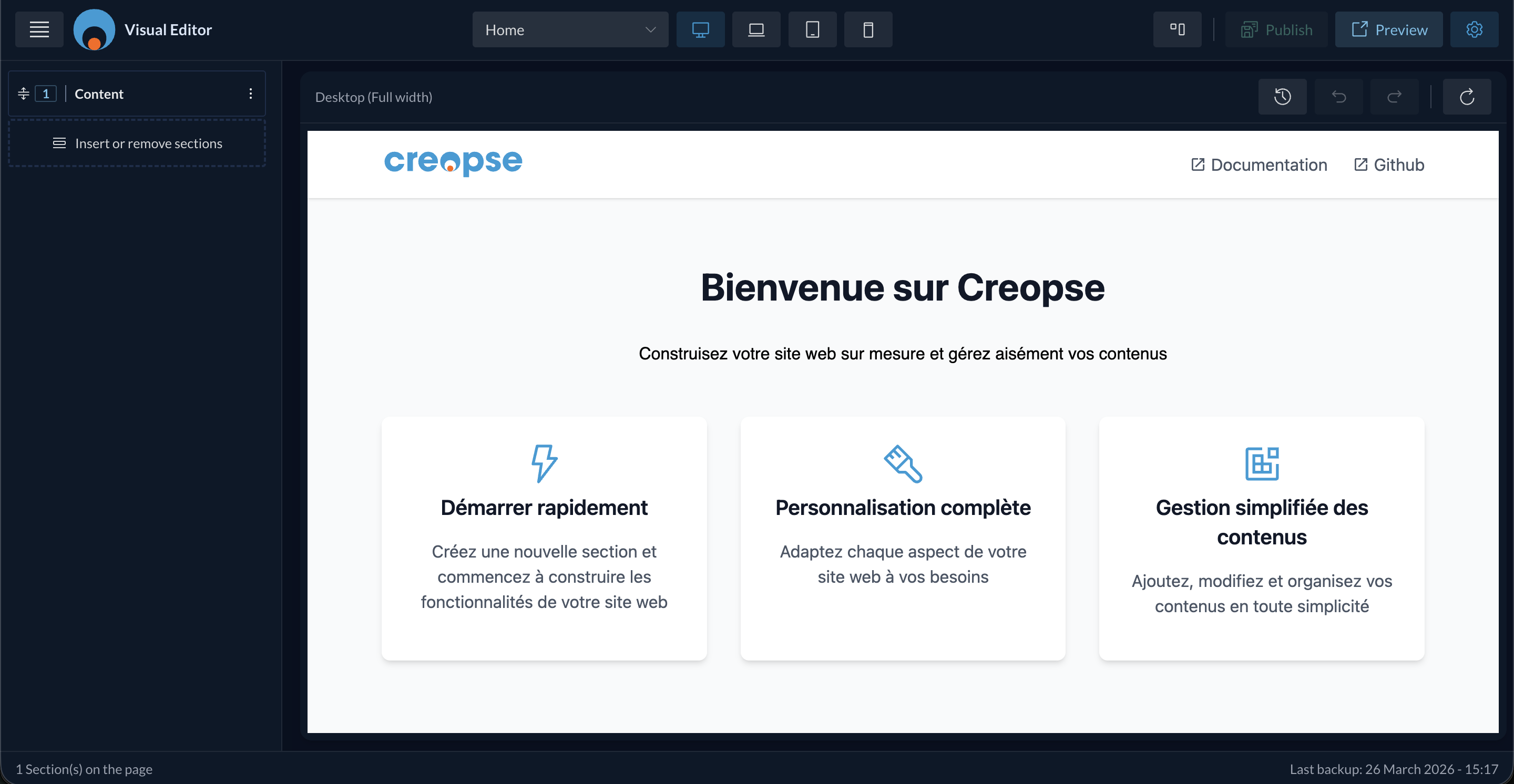
Top bar
- Page selector — switches the editor to another page without leaving it.
- Responsive preview icons — desktop, laptop, tablet, mobile.
- Sidebar collapse icon.
- Publish — publishes the current changes.
- Preview — opens a preview of the public rendering.
- Settings icon.
Section panel
On the left, the ordered list of the current page's sections (order number, name, "⋮" contextual menu per section). The Insert or remove sections block lets you attach or detach a section without leaving the editor.
Preview area
Shows the actual rendering of the page for the selected display mode (e.g. "Desktop — Full width"), with history controls (undo, redo, refresh) at the top right of the area. Clicking a section in the preview or in the left panel selects it for editing.
At the bottom of the screen: the number of sections on the page, and the timestamp of the last save.
TIP
The visual editor edits the same data as the Page Sections screen — see Pages — both interfaces stay in sync.
See also
An end-user–oriented version of this section exists in the User Guide.