
Visual Editor
The visual editor lets you edit a page's content directly on its rendering, rather than through the Content Management forms. Your changes only affect the content — never the design of the sections.
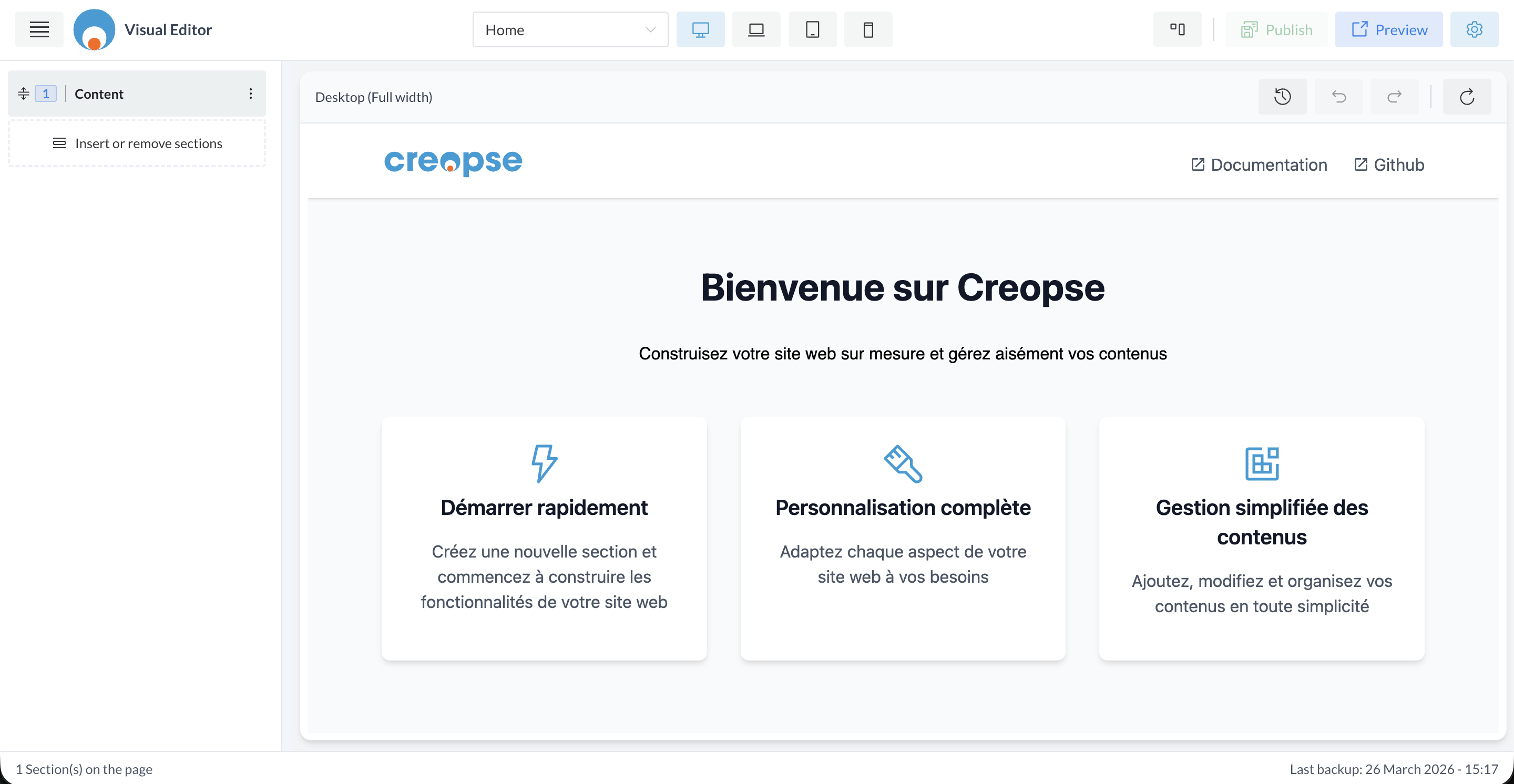
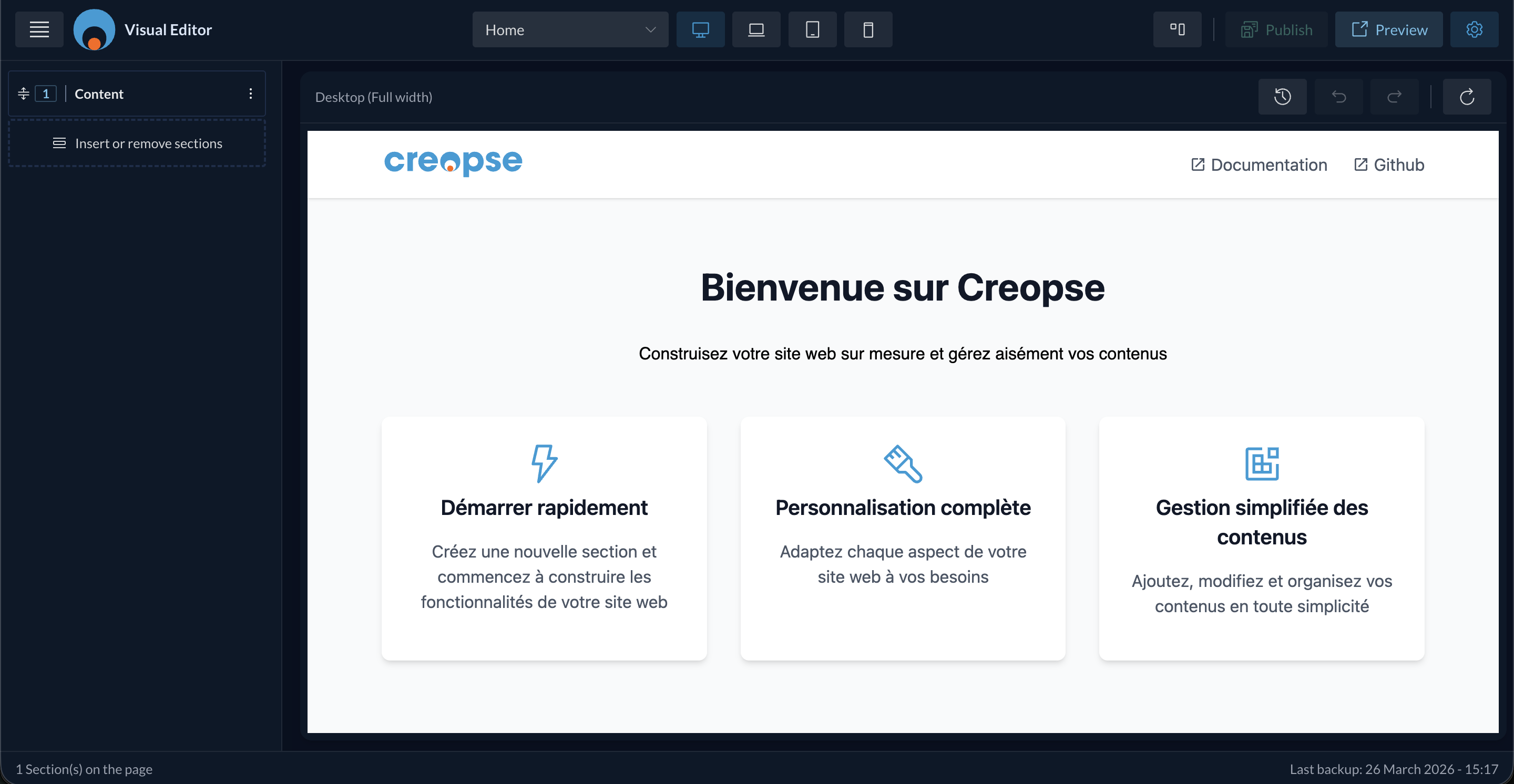
Finding your way around
- The selector at the top lets you switch pages without leaving the editor.
- The device icons (desktop, laptop, tablet, mobile) preview the rendering for each screen size.
- Publish makes your changes publicly visible; Preview opens a preview without publishing.
- The left panel lists the page's sections — clicking a section (in the list or directly in the preview) selects it for editing.
- Insert or remove sections adds or removes a section without leaving the editor.
At the bottom of the screen: the number of sections on the page, and the time of the last save.
TIP
Remember to publish once your changes are complete — until you do, only the previous version stays visible on the public site.
Are you a developer?
A technical version of this section exists in the Developer Docs.